
VS Code
VS Code is the makefile editor for Linux, macOS, and MSYS2. Install openFrameworks first with the Linux, Raspberry Pi, or MSYS2 guide. Windows Visual Studio projects use the Visual Studio guide instead of this page. The MSYS2 terminal settings are at the bottom of this page.
Common
Install VS Code
- Download and install VS Code for your platform. NOTE: For an MIT Licensed version of VS Code without tracking - you can download the latest VSCodium release which has 1:1 feature parity as VS Code ( just Open Source ).
- When opening an OF project you may be asked to install extensions. We recommend only installing the Microsoft C/C++ extension and the Makefile extension.
- For 0.12.1 makefile projects, use the generated Makefile tasks. CMake Tools is not required; decline automatic CMake configuration for these projects. Recent nightly builds have a separate CMake template for users who choose that build system.
We recommend the following extensions for OF in VS Code.
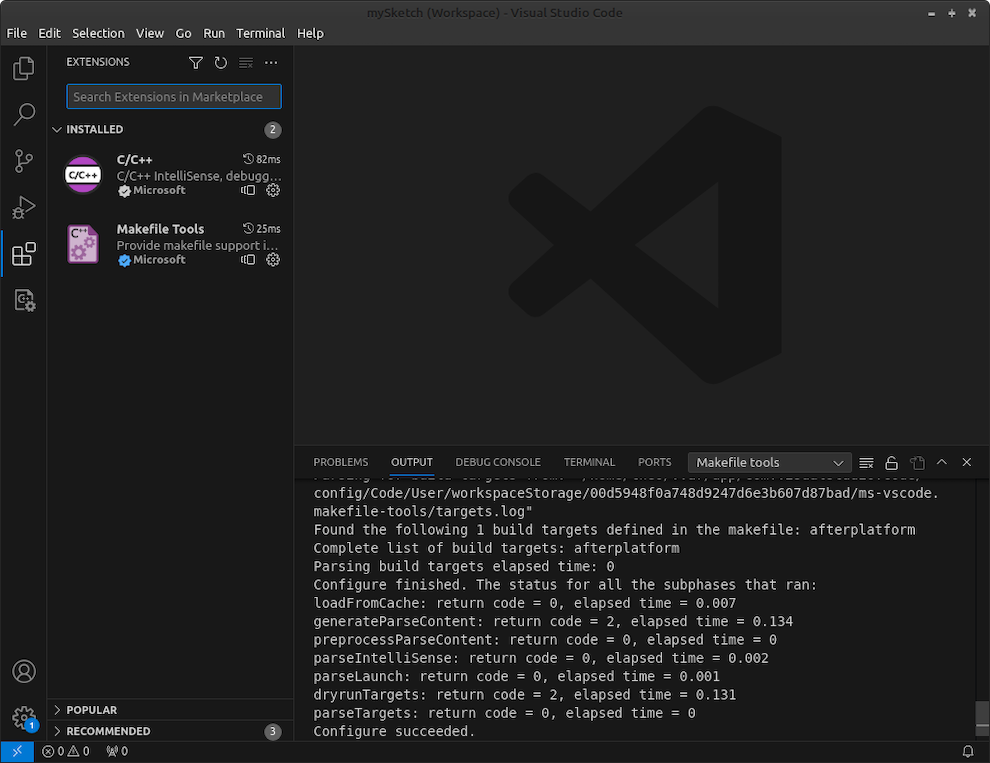
Open a VS Code project.
The file extension of a VS Code project is .code-workspace. All examples should have a VS Code project file already eg: examples/3d/3DPrimitivesExample/3DPrimitivesExample.code-workspace. Double clicking on the file should open it in VS Code.
Building a VS Code project.
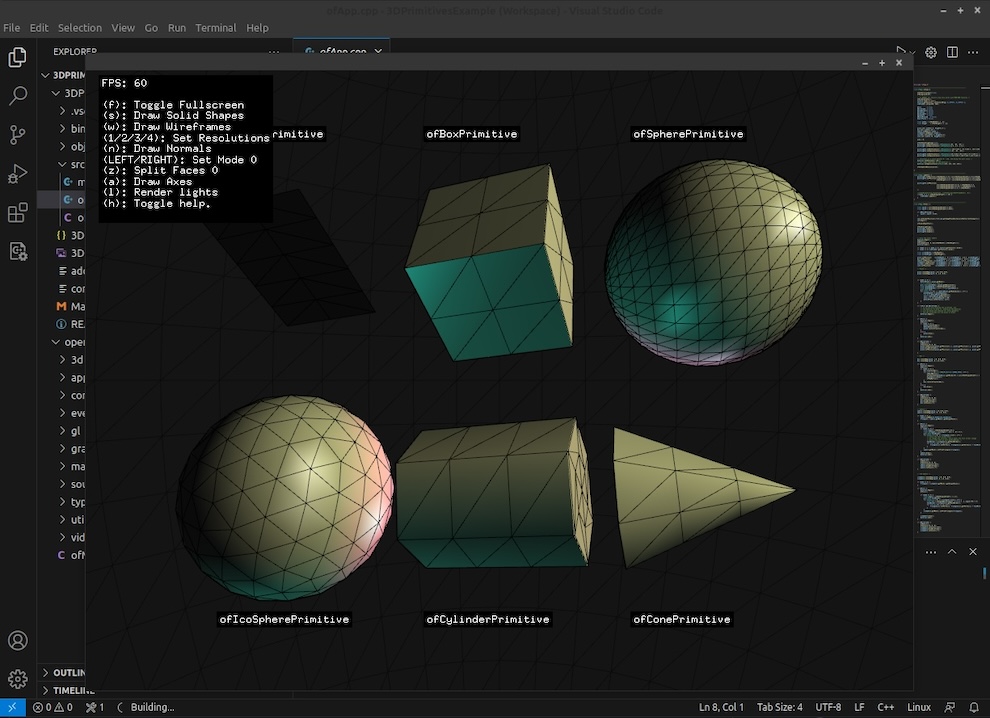
To build a VS Code project go up to the menu titled Terminal and select Run Build Task... and then Build Release. Build Release builds and also runs your project in Release mode.
Building and running in Release.
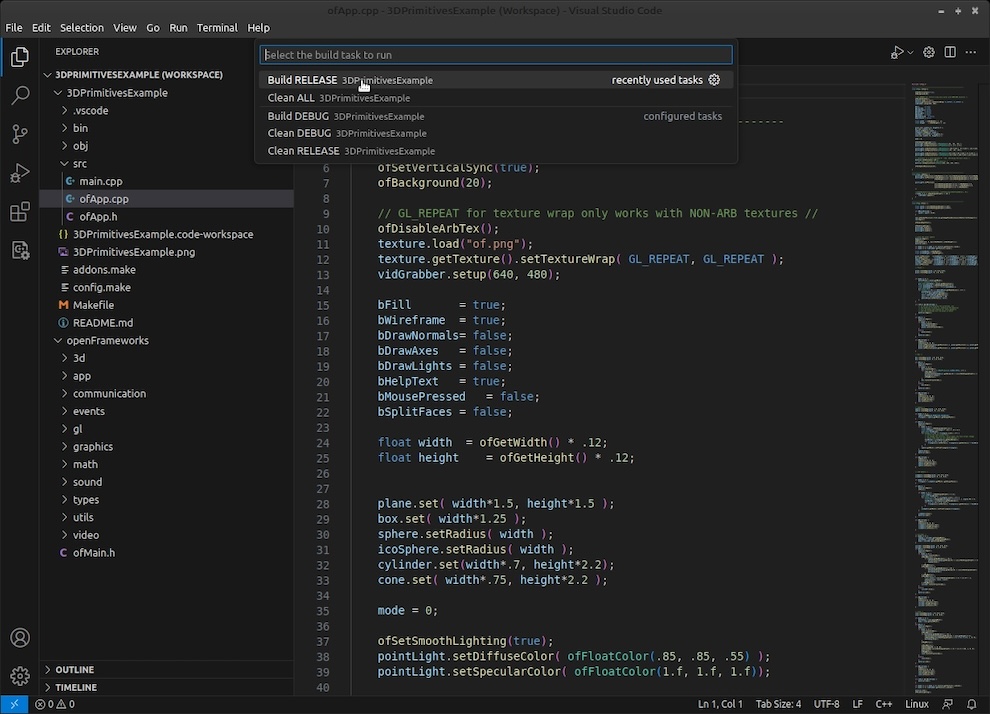
Debugging a VS Code project.
- First open the Terminal menu and select Run Build Task... and then Build Debug. This compiles the app for Debug but does not run it.
- Then open the Run menu and select Begin Debugging.
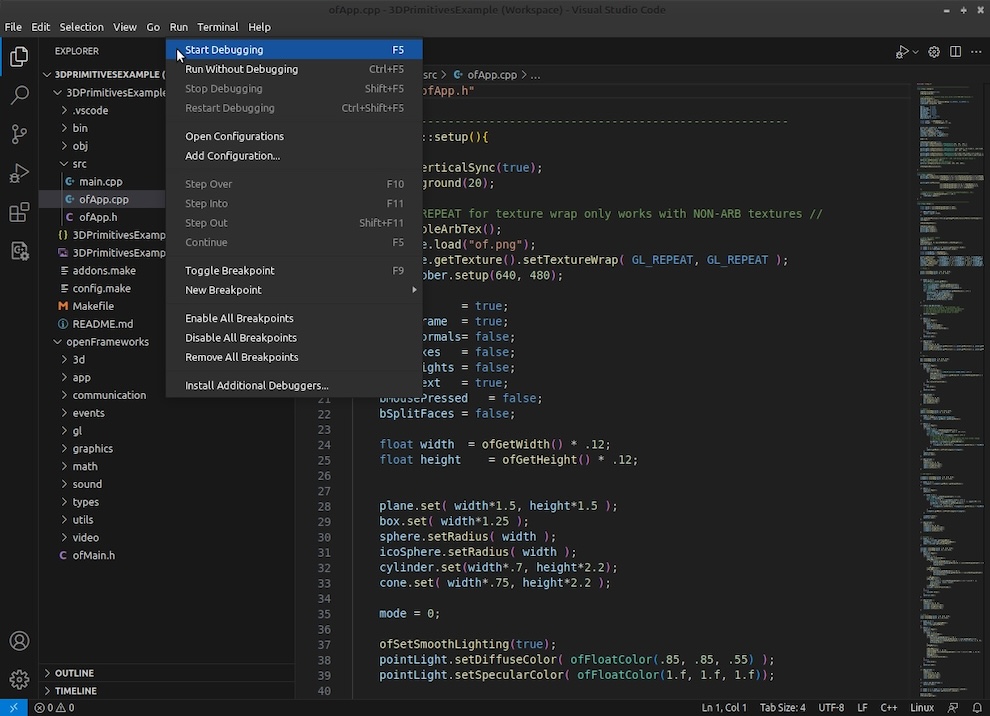
MSYS2 ONLY
Setting up MSYS2 shell
Open the VS Code settings and search for 'terminal profile windows'.
In Terminal > Integrated > Automation Profile : Windows, select Edit in settings.json.
Use the environment matching your openFrameworks zip. The example below is for UCRT64. Add an OF-UCRT64 entry to terminal.integrated.profiles.windows:
    "terminal.integrated.profiles.windows": {
        "OF-UCRT64":{
            "path": "C:\\msys64\\usr\\bin\\bash.exe",
            "color": "terminal.ansiBlue",
            "icon":"beaker",
            "overrideName":true,
            "args": ["--login", "-i"],
            "env": {
                "MSYSTEM": "UCRT64",
                "CHERE_INVOKING": "1",
                "MSYS2_PATH_TYPE": "inherit"
            }
        }
    },
    "terminal.integrated.defaultProfile.windows": "OF-UCRT64",
Now when you open a terminal in VS Code, it will open a UCRT64 shell where you can run the make commands as appropriate.
For the MINGW64 package, use OF-MINGW64, MSYSTEM=MINGW64, and c:/msys64/mingw64 in the compiler settings below. For CLANG64, use OF-CLANG64, MSYSTEM=CLANG64, c:/msys64/clang64, and clang++.exe.
Edit C/C++ Extension settings
{
    "env": {
        "OF_ROOT": "C:/openFrameworks"
    },
    "configurations": [
        {
            "name": "OF-UCRT64",
            "includePath": [
                "${workspaceFolder}/**",
                "${env:OF_ROOT}/addons/**/src",
                "${env:OF_ROOT}/libs/openFrameworks/**",
                "c:/msys64/ucrt64/include/**"
            ],
            "defines": [
                "_DEBUG",
                "UNICODE",
                "_UNICODE"
            ],
            "windowsSdkVersion": "10.0.19041.0",
            "compilerPath": "c:/msys64/ucrt64/bin/g++.exe",
            "cStandard": "c17",
            "cppStandard": "c++17",
            "intelliSenseMode": "windows-gcc-x64"
        }
    ],
    "version": 4
}
CMake projects (nightly / 0.12.2)
For a current project generated with PG's cmake template, install Microsoft's C/C++ and CMake Tools extensions and open the folder containing CMakeLists.txt. Select the compiler/toolchain matching your openFrameworks libraries, configure, then build. Existing makefile projects can continue using their generated Makefile tasks.
See the CMake guide for platform-specific configure commands. On MSYS2 launch VS Code from the matching UCRT64, CLANG64 or CLANGARM64 shell so CMake inherits the correct tools.